GTA 6 best settings for PS5 and Xbox: what to change first
Quick answer
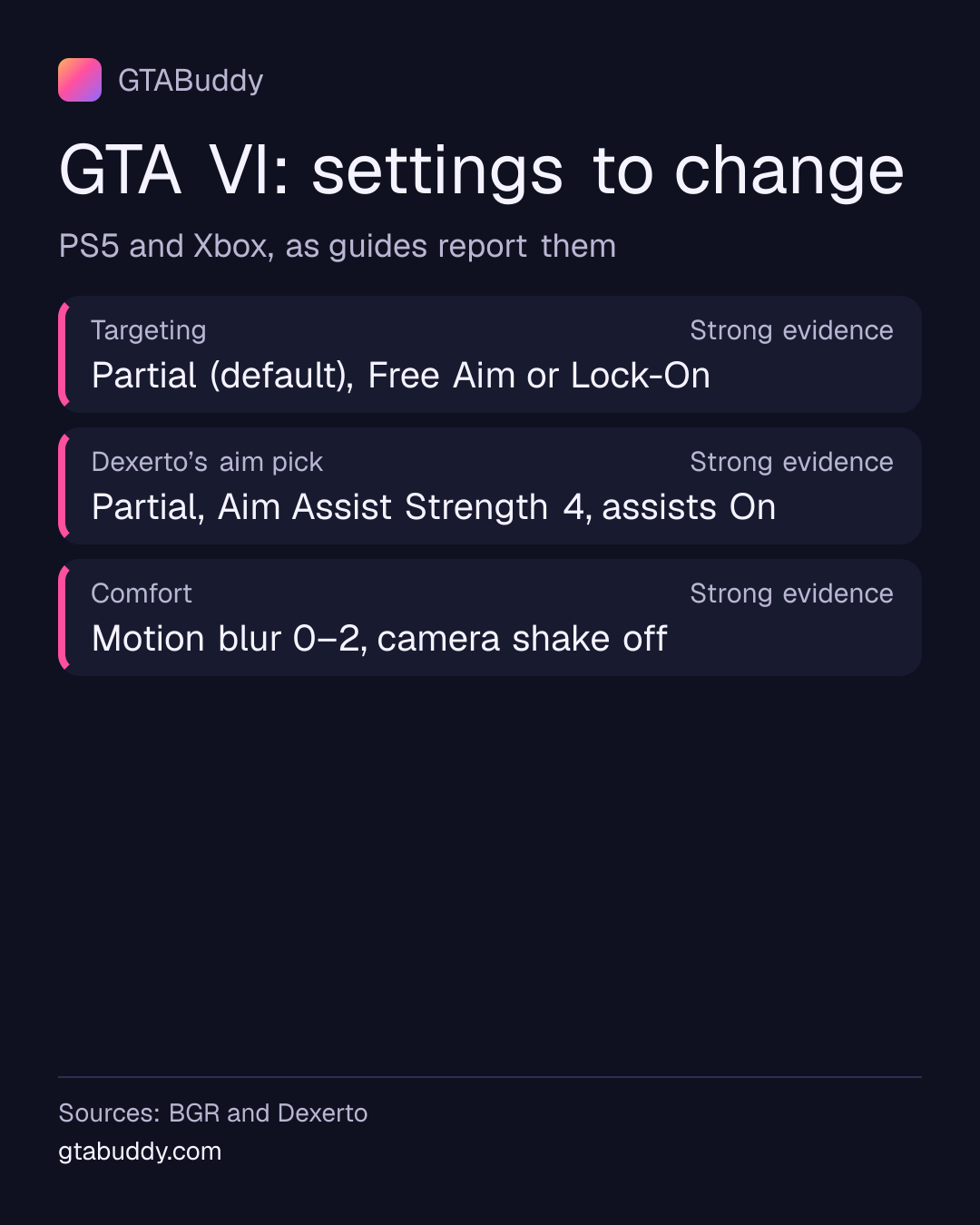
Start with Targeting, under Settings, Gameplay, Combat. It’s Partial by default: a light pull towards targets. Switch to Free Aim if you want no help, or Lock-On if you want the game to snap to the nearest target. Then look at movement speed, motion blur and camera shake. Dexerto’s recommended values for each are below; treat them as a starting point, not a rule.
Reported, not yet tested by GTABuddy. Menu names and the targeting modes come from BGR and Dexerto; the recommended values are Dexerto’s own picks. We haven’t compared them in the game ourselves yet.
- Change first
- Targeting: Partial, Free Aim or Lock-On Status: Strong evidence
- Dexerto’s aim pick
- Partial, Aim Assist Strength 4 Status: Strong evidence
- Comfort
- Motion blur and camera shake down Status: Strong evidence
How to open GTA 6’s settings
- Press the menu button to open the pause menu, then choose Settings.
- Move between the tabs (Gameplay, Display, UI, Camera and Audio) with R1 on PS5 or RB on Xbox.
- Change what you need, then go back with Circle or B: Dexerto says that saves your changes.
- How to open settings
- Open the pause menu, choose Settings and move between the tabs (Gameplay, Display, UI, Camera, Audio) with R1 or RB; going back saves your changes
- Status: Strong evidence
Sources and status for How to open settings
Strong evidence. Credible evidence supports this, but Rockstar has not confirmed it.
Last checked:
- BGR · Reputable reporting · Supports this · Published 19 November 2026“To change your aim assist settings in "GTA 6," you must play until you can open the pause menu. Once here, navigate down to Settings and then tab over to Gameplay.”
- Dexerto · Reputable reporting · Supports this“Use R1 or RB to move between the tabs.”
- Dexerto · Reputable reporting · Supports this“Go back (Circle or B) to save the changes.”
Targeting and aim assist: pick how much help you want
| Mode | What it does | Who it suits |
|---|---|---|
| Partial (default) | Some guidance, less intrusive than Lock-On | Most players; a middle ground |
| Lock-On | Snaps you to the nearest target | Players new to shooting on a controller |
| Free Aim | No help; full control of where you aim | Experienced players who want precision |
Below Targeting sit Aim Assist Strength, Shooting Assist, Drive-By Assist and Quick Draw. Dexerto’s picks are Partial, strength 4 and the three toggles On. If the aim feels too sticky, lower the strength a step at a time and try the same fight again: change one setting at a time, so you know which one made the difference.
- Targeting modes
- Targeting, under Gameplay > Combat, is Partial by default; the other choices are Free Aim (no help) and Lock-On (snaps to the nearest target)
- Status: Strong evidence
Sources and status for Targeting modes
Strong evidence. Credible evidence supports this, but Rockstar has not confirmed it.
Last checked:
- BGR · Reputable reporting · Supports this · Published 19 November 2026“by default, "GTA 6" uses a Partial Targeting system — with the option to switch to two other options called Free Aim and Lock-On.”
- BGR · Reputable reporting · Supports this · Published 19 November 2026“Find the Targeting option under the Combat section of the Gameplay menu and change it to the aim assist setting that you want to use.”
- BGR · Reputable reporting · Supports this · Published 19 November 2026“it's a lot less intrusive compared to the Lock-On settings, which snap you to the nearest target.”
- Dexerto · Reputable reporting · ContextGameplay settings, Combat: “Targeting Partial Aim Assist Strength 4 Shooting Assist On Drive-By Assist On Quick Draw On”
- Dexerto’s combat picks
- Dexerto recommends: Targeting Partial, Aim Assist Strength 4, Shooting Assist On, Drive-By Assist On, Quick Draw On
- Status: Strong evidence
Sources and status for Dexerto’s combat picks
Strong evidence. Credible evidence supports this, but Rockstar has not confirmed it.
Last checked:
- Dexerto · Reputable reporting · Supports thisGameplay settings, Combat: “Targeting Partial Aim Assist Strength 4 Shooting Assist On Drive-By Assist On Quick Draw On”
Movement speed, accessibility, display and camera
- Movement. There are two speed settings: Movement Speed and Combat Movement Speed. Dexerto picks Run and Fast Walk. If your character moves faster than you expect in a fight, check both.
- Accessibility. Accessible Combat and Reduced Vehicle Damage sit under Gameplay, Accessibility. Dexerto keeps both Off, but they’re there if fights or chases keep going wrong. See all GTA 6 accessibility features.
- Display. Dexerto turns HDR on and calibrates it to your TV, and keeps Motion Blur Strength between 0 and 2.
- Camera. Dexerto turns Camera Shake off, sets Camera Bob to 0 and raises the vehicle camera height to High.
- Dexerto’s movement picks
- Dexerto recommends: Movement Speed Run, Combat Movement Speed Fast Walk, Stand & Sprint Off
- Status: Strong evidence
Sources and status for Dexerto’s movement picks
Strong evidence. Credible evidence supports this, but Rockstar has not confirmed it.
Last checked:
- Dexerto · Reputable reporting · Supports thisGameplay settings, Movement: “Movement Speed Run Combat Movement Speed Fast Walk Stand & Sprint Off”
- Accessibility options
- Dexerto lists Accessible Combat and Reduced Vehicle Damage under Gameplay > Accessibility, and keeps both Off
- Status: Strong evidence
Sources and status for Accessibility options
Strong evidence. Credible evidence supports this, but Rockstar has not confirmed it.
Last checked:
- Dexerto · Reputable reporting · Supports thisGameplay settings, Accessibility: “Accessible Combat Off Reduced Vehicle Damage Off”
- Dexerto’s display picks
- Dexerto recommends: HDR On with calibration matched to your display, and Motion Blur Strength between 0 and 2
- Status: Strong evidence
Sources and status for Dexerto’s display picks
Strong evidence. Credible evidence supports this, but Rockstar has not confirmed it.
Last checked:
- Dexerto · Reputable reporting · Supports thisDisplay settings: “HDR On HDR Calibration Match your display”
- Dexerto · Reputable reporting · Supports thisVisual Effects: “Motion Blur Strength 0-2”
- Dexerto’s camera picks
- Dexerto recommends: Camera Shake Off and Camera Bob 0, with the vehicle camera height on High
- Status: Strong evidence
Sources and status for Dexerto’s camera picks
Strong evidence. Credible evidence supports this, but Rockstar has not confirmed it.
Last checked:
- Dexerto · Reputable reporting · Supports thisCamera settings, Comfort: “Camera Shake Off Camera Bob 0”
- Dexerto · Reputable reporting · Supports thisLand & Water Vehicles: “Height (All Vehicles) High”
Dexerto’s quick-start settings
| Tab | Setting | Dexerto’s pick |
|---|---|---|
| Gameplay | Targeting | Partial |
| Gameplay | Aim Assist Strength | 4 |
| Gameplay | Shooting Assist | On |
| Gameplay | Drive-By Assist | On |
| Gameplay | Combat Movement Speed | Fast Walk |
| Display | HDR | On (if supported) |
| Display | Motion Blur Strength | 0 |
| UI | Minimap | Dynamic |
| Camera | Height (All Vehicles) | High |
| Camera | Camera Shake | Off |
| Camera | Camera Bob | 0 |
What we don’t know yet
- Exactly how much each aim assist step changes, or the slider’s full range. Check it in your own menu.
- Whether a future update changes these menus. Settings guides published at launch may go out of date.
Related: GTA 6 on PS5 vs Xbox and GTA 6 cheat codes.
Sources for this page
- How To Adjust Aim Assist In GTA 6 (And Why You Should) (BGR, published 19 November 2026), checked
- GTA 6 best console settings (Dexerto), checked